Android Utility Tool V200.01 Download for Windows (2027)

An Android phone that is stuck in a boot loop, shows a firmware error, or needs a factory reset can stop a repair job. Android Utility Tool is a Windows program that brings device info, firmware work, resets, and servicing functions together for MediaTek, Qualcomm, and Unisoc phones. This guide explains what it does, which modes it uses, what your PC needs, and what to check before you start.
Also Read Trusted Tools: ASUS Flash Tool | SP Flash Tool
Key Takeaways
- Version: V200.01 is the version most pages list. Some call it V200.01.0001.
- Platform: Windows PC, with MediaTek (MTK), Qualcomm, and Unisoc (Spreadtrum) support.
- Main Jobs: Firmware flashing, factory reset, FRP and screen lock servicing, and device information.
- Note: No official site or license is confirmed. Check the file before opening it.
What Is Android Utility Tool?
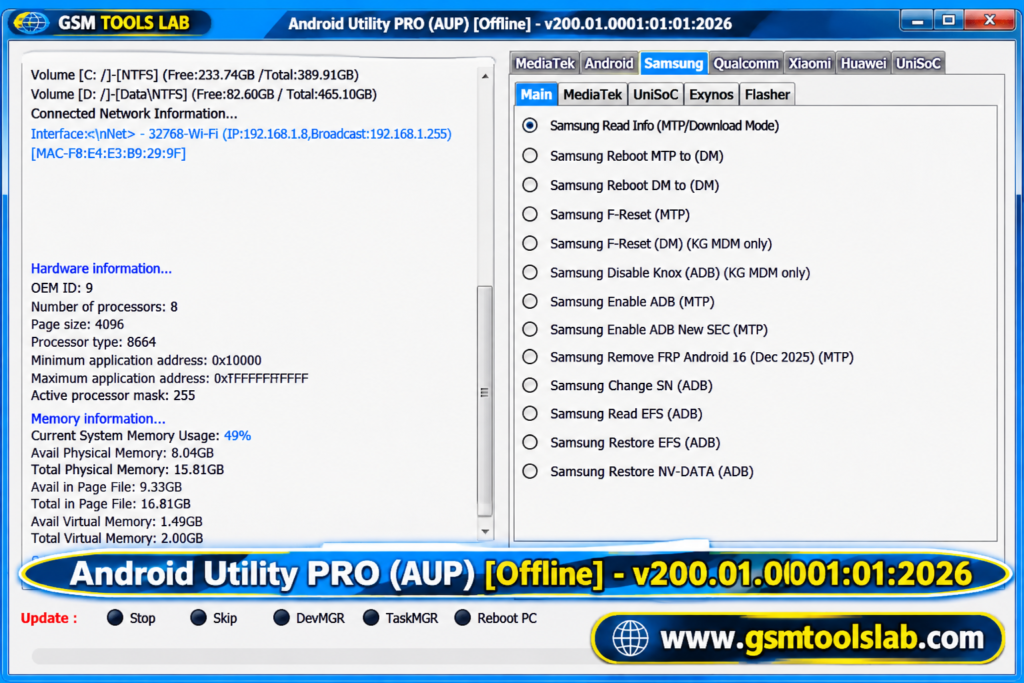
Android Utility Tool is a Windows application for technicians and advanced users. It connects to phones over USB and works with ADB, Fastboot, and META mode. FRP stands for Factory Reset Protection. It is a Google feature that asks for the old account after a reset. The tool lists Samsung, Xiaomi, Redmi, Oppo, Vivo, Huawei, Motorola, Tecno, and Infinix phones. Results depend on the model, chipset, firmware, and security patch.
Key Features of Android Utility Tool
Qualcomm Device Support
The tool works with selected Qualcomm phones, including those in EDL. Support depends on the model.
Unisoc Support
Selected Unisoc phones are supported for repair jobs such as boot repair.
MediaTek and META Mode
META mode is a service mode on selected MediaTek phones. It helps with tasks such as reading info and repair. Some pages also mention MediaTek authentication (DAA/SLA) support. This is not proven.
Device Information
The tool can read the model, Android version, serial number, and software status before a job.
Firmware Management and Flashing
It can write stock firmware to fix boot loops and failed updates. Always use firmware made for your exact model.
Factory Reset and Screen Lock Servicing
These options reset a phone to its clean state or clear a forgotten lock. They can erase data.
FRP Servicing
The tool lists FRP options on some phones. FRP is an anti-theft feature, so use it only on a phone you own or have permission to service. Newer security patches can block it.
What’s New in the Latest Version?
- An offline build, listed as V200.01.
- Better firmware flashing and device detection.
- Updated ADB and Fastboot functions.
- Samsung Android 16 support.
- Xiaomi 14C and 15C RAM check without a DA file, as reported by some pages.
Android Utility Tool Supported Brands and Chipsets
| Group | Details |
|---|---|
| Chipsets | MediaTek (MTK), Qualcomm, Unisoc (Spreadtrum) |
| Brands | Samsung, Xiaomi, Redmi, Oppo, Vivo, Huawei, Motorola |
| More brands | Tecno, Infinix, Realme |
| Modes | ADB, Fastboot, META, EDL |
Android Utility Tool Download Information
- Tool Name: Android Utility Tool
- Version: V200.01
- File Type: ZIP or RAR
- File Size: 194.6 MB
Here is the Official download link 👇
Android Utility Tool System Requirements
| Requirement | Details |
|---|---|
| Operating System | Windows 10 or 11 |
| Processor | Intel or AMD dual-core or better |
| RAM | 4 GB recommended (2 GB minimum on some pages) |
| Storage | 500 MB free |
| Drivers | ADB, Fastboot, and brand USB drivers |
| Other | USB cable and administrator access |
How to Download and Install the Tool
- Download this tool from gsmtoolslab or from a trusted source.
- Extract the archive with 7-Zip or WinRAR into its own folder.
- Scan the files with antivirus before you open them.
- Install the USB drivers your phone needs.
- Turn on USB debugging if an ADB function needs it.
- Run the tool as administrator.
- Connect the phone, pick the function, and read the log.
- Keep the cable connected until the job ends.
If the phone is not detected, reinstall the drivers and try another cable or port.
Pros and Cons
| Pros | Cons |
|---|---|
| Qualcomm, MediaTek, and Unisoc in one tool | Windows only |
| Flashing, reset, and device info together | Support varies by model and patch |
| Works with ADB, Fastboot, and META mode | Some pages say a smart card may be needed |
| Suits repair shop work | No confirmed official site or license |
Conclusion
Android Utility Tool is a Windows program for flashing, reset, and servicing jobs on MediaTek, Qualcomm, and Unisoc phones. Check your model, install the right drivers, back up data, and verify the file first.
Frequently Asked Questions
What is Android Utility Tool used for?
It is used to service Android phones on Windows. Listed jobs are firmware flashing, factory reset, screen lock servicing, FRP servicing, and device info.
Is Android Utility Tool free?
Yes, Android Utility Tool provides a free version that includes essential features. However, some advanced functions may require a premium license or additional authorization.
Which chipsets does Android Utility Tool support?
MediaTek, Qualcomm, and Unisoc (Spreadtrum). Support differs by model and security patch.
What is META mode?
META mode is a service mode on selected MediaTek phones. The tool uses it for reading info and some repair tasks.
Does it work on Samsung Android 16?
Yes, Samsung Android 16 is supported. Results depend on the model and security patch, so check first.
Why is my phone not detected?
Install the right USB driver, try another cable or port, and put the phone in the right mode, such as META for MediaTek or EDL for Qualcomm.