Prime ToolX V9 | GSM Prime Free Download for Windows | Full Tested 100%

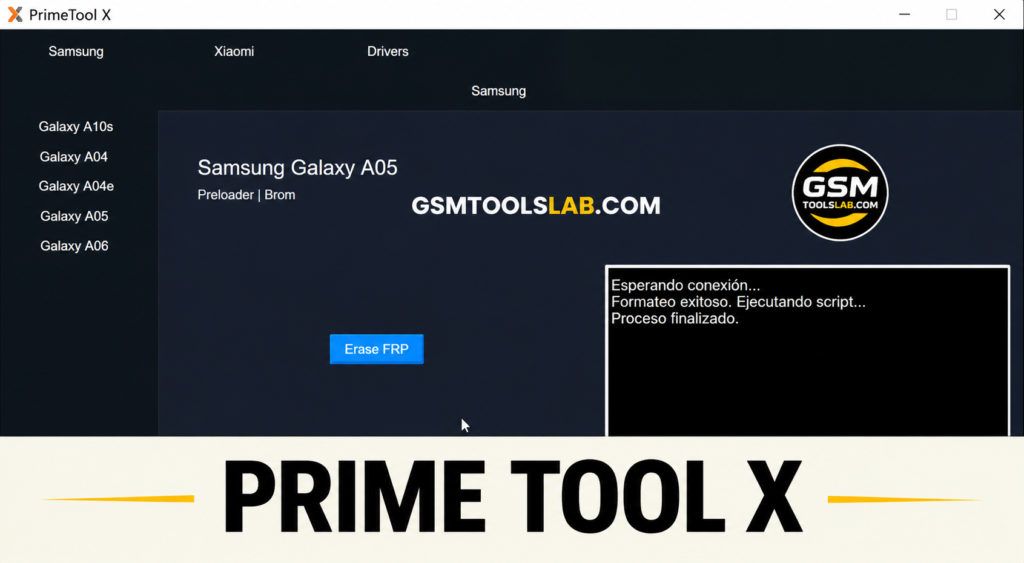
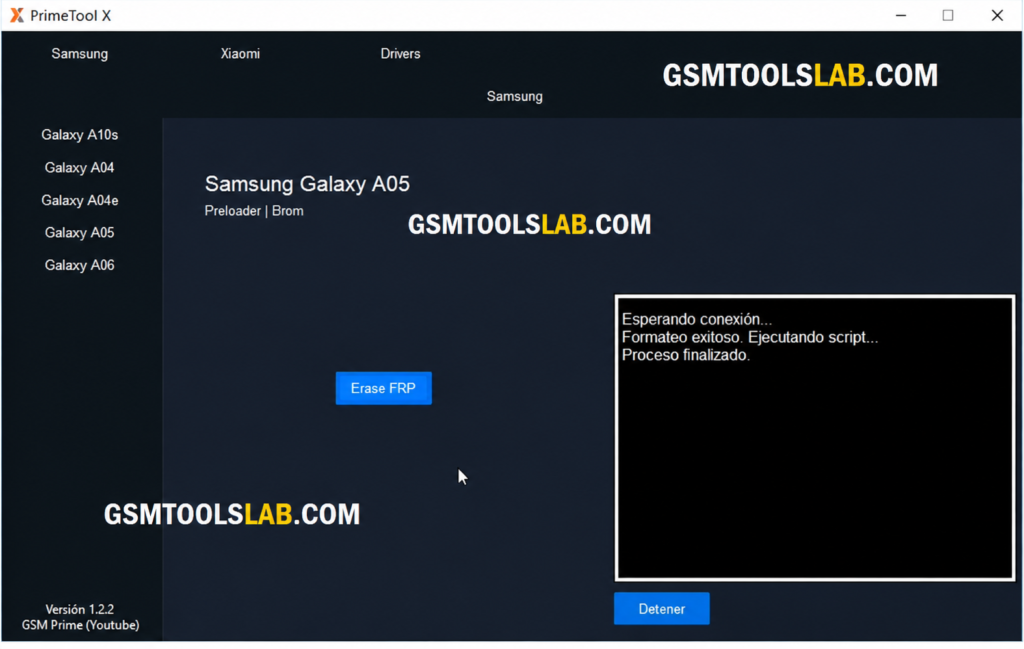
A Samsung or Xiaomi phone stuck on the Google account screen after a reset can stop a repair job. Prime ToolX, also called GSM Prime Tool, is a Windows program that brings FRP servicing, driver setup, flashing, and reset options together for supported Samsung, Xiaomi, Redmi, and selected Motorola phones.
Also Read Trusted Tools: UMT Tool V13.6 Download | FRT Tool v1.7.5 Download for Windows
Key Takeaways
- Type: A Windows servicing tool for Samsung, Xiaomi/Redmi, and selected Motorola phones.
- Modes: ADB, Fastboot, MTP, Download Mode, Preloader, BROM, and Qualcomm EDL (9008).
- Main Jobs: FRP servicing, firmware flashing, factory reset, and driver setup.
- Note: Version names and license terms differ across listings. No official terms are confirmed.
What Is Prime ToolX?
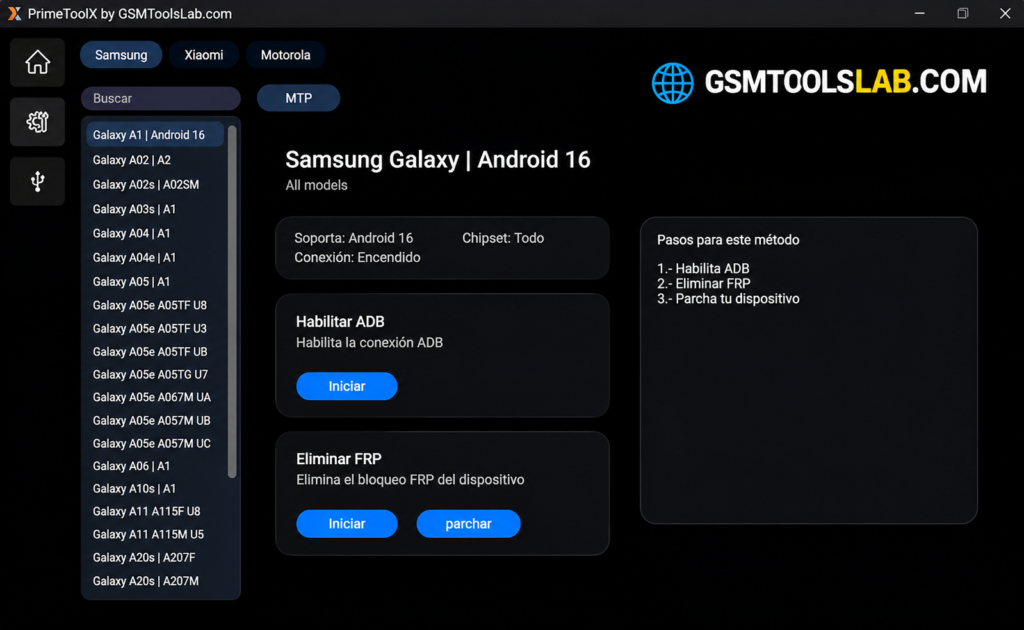
Prime ToolX is a Windows application for technicians who service Android phones. Prime ToolX supports selected Qualcomm and MediaTek devices and offers functions through connection methods such as MTP, Download Mode, and Qualcomm EDL. It talks to the phone in several modes, and it includes driver options for MediaTek and Qualcomm devices. Results depend on the model, chipset, firmware, and security patch.
Key Features of Prime ToolX 2027
Samsung FRP and Servicing
The tool lists FRP servicing for selected Samsung models through MTP, ADB, and Download Mode. Some pages also list Knox disable, CSC change, and Odin-style flashing.
Qualcomm Support
It works with selected Samsung Qualcomm phones in HS-USB QDLoader 9008 (EDL) mode. Newer builds say Zadig is no longer needed for these models.
MediaTek Support
Selected MediaTek phones connect in Preloader and BROM modes. Redmi and Motorola entries use this path on many pages.
ADB and Fastboot Functions
ADB and Fastboot options help with device info, reboot actions, app tasks, and some Xiaomi functions.
Built-In Driver Installer
The Prime ToolX Drivers tab installs MediaTek, UsbDk, and Qualcomm QDLoader 9008 drivers, so Windows can detect the phone.
Reset and Backup Options
Factory reset and partition backup tools are listed, such as NVRAM, EFS, MODEM, and USERDATA. Back up before any reset.
What’s New in the Latest Builds?
- Android 16 FRP support on some Samsung models.
- New Samsung Qualcomm model and security-bit entries.
- No Zadig step for newer Qualcomm models.
- Better detection and stability.
- A redesigned interface.
- Motorola entries such as Moto E22, E22i, G05, and G15.
Prime ToolX Supported Brands and Modes
| Brand | Connection Modes | Common Functions |
|---|---|---|
| Samsung | MTP, ADB, Download Mode, EDL | FRP, flashing, factory reset |
| Xiaomi / Redmi | Preloader, BROM, ADB, Fastboot | FRP, Mi Account options |
| Motorola | Preloader, BROM | FRP on selected models |
| LG (some pages) | MTP, EDL | Factory reset, FRP, KDZ flashing |
Prime ToolX Download Information
- Tool Name: Prime ToolX (GSM Prime Tool)
- Version: V9.0
- File Type: ZIP or RAR
- Developer: GSM Prime Team
- File Size: 160 MB
Here is the Official download link 👇
Prime ToolX System Requirements
| Requirement | Details |
|---|---|
| Operating System | Windows 7, 8, 10, or 11 |
| Processor | Intel or AMD dual-core |
| RAM | 2 GB minimum |
| Storage | 500 MB free |
| Runtime | .NET Framework 4.7.2 or higher, Visual C++ 2015 or newer |
| Drivers | MediaTek, UsbDk, Qualcomm QDLoader 9008, Samsung USB |
| Other | USB data cable and administrator access |
How to Download and Install the Tool
- Download the tool from gsmtoolslab or from a trusted source.
- Extract the archive with WinRAR or 7-Zip into its own folder.
- Scan the files with antivirus before you open them.
- Run the program as administrator.
- Open the Drivers tab and install the MediaTek and UsbDk drivers. Add Qualcomm QDLoader 9008 if your phone needs it.
- Restart Windows.
- Pick the brand and model, then read the log instructions.
- Connect the phone in the mode your model needs and keep the cable in until the job ends.
If the phone is not detected, reinstall the drivers and try a USB 2.0 port or another cable.
Pros and Cons
| Pros | Cons |
|---|---|
| Samsung, Xiaomi, and Motorola in one tool | Support varies by model and security patch |
| Many modes: ADB, EDL, BROM, Preloader | Needs several drivers |
| Built-in driver installer | Version names are inconsistent |
| Simple Windows interface | No confirmed official site or license |
Conclusion
Prime ToolX is a Windows-based Android servicing tool for technicians working with supported Samsung, Xiaomi, Redmi, Motorola, and selected LG devices. Its listed features include FRP servicing, firmware flashing, factory reset, ADB and Fastboot functions, and partition backups across supported connection modes. Before downloading Prime ToolX V9.0, check Windows requirements and device compatibility. Install the required MediaTek, UsbDk, or Samsung drivers, and back up all important data first before starting any servicing operation.
Frequently Asked Questions
What is Prime ToolX used for?
It is used to service Android phones on Windows. Listed jobs are FRP servicing, firmware flashing, factory reset, and driver setup.
What is the latest version?
Prime ToolX V9.0 is the latest version on gsmtoolslab.
Which brands and chipsets are supported?
Samsung, Xiaomi, Redmi, and selected Motorola phones on MediaTek and Qualcomm chips. And also LG.
Does it work on Android 16?
Android 16 FRP support on selected Samsung models. Results depend on the model and security patch.
Why is my phone not detected?
Install the MediaTek, USBDeview, or Qualcomm driver, run the tool as administrator, and try a USB 2.0 port. Also check that the phone is in the right mode.