Fastboot Flash Tool V1.0.1.2 Free Download Setup for Windows

A phone stuck on the logo, a failed update, or a boot loop can stop a repair job. Fastboot Flash Tool is a small Windows program that talks to the Android bootloader and helps flash firmware, pick single partitions, and fix common Fastboot errors. You can fix the vendor, data, recover your system, and official firmware.
Also Read Trusted Tools: Prime ToolX Free Download Setup | KS Tool v4.6 Download for Windows
Key Takeaways
- Version: V1.0.1.2 is the latest version.
- Platform: Windows PC, with Xiaomi, Redmi, Oppo, Motorola, and other Fastboot-ready phones.
- Main Jobs: Firmware flashing, partition flashing, bootloop repair, and Fastboot error fixes.
- Note: Check the file from a trusted site before opening it.
What Is Fastboot Flash Tool?
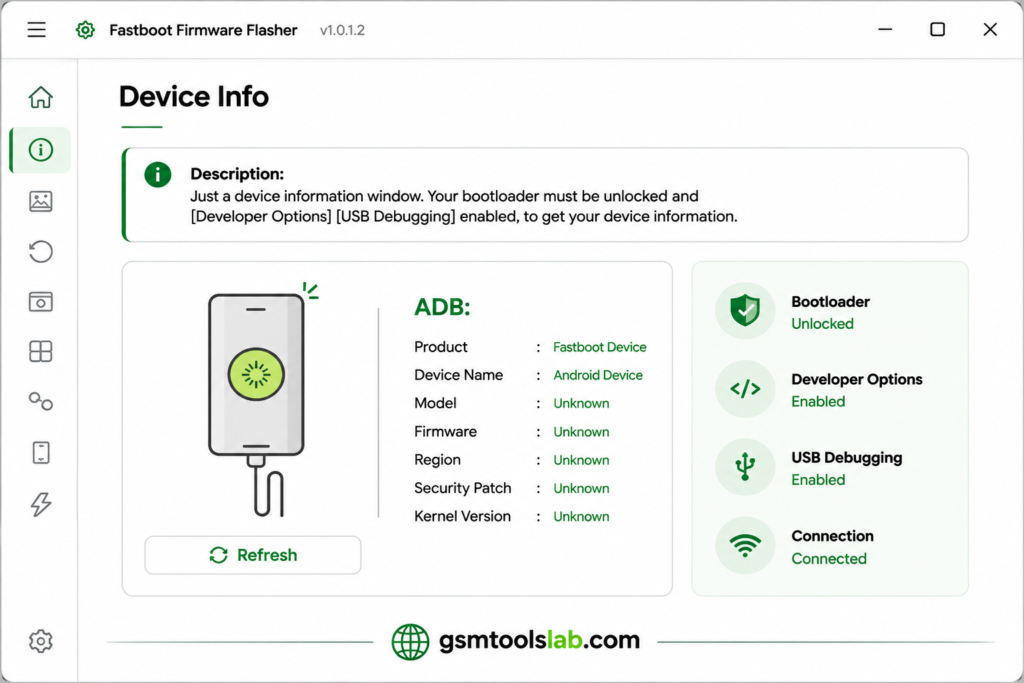
Fastboot is a protocol made for Android phones. It lets a PC talk to the bootloader, which is the small program that starts the phone. It is part of the Android Open Source Project (AOSP) platform tools. Fastboot Flash Tool puts this into a simple Windows screen, so you do not have to type commands. It can flash firmware, pick partitions, and, on some phones, move into EDL. Results depend on the model, chipset, firmware, and security patch. Use it only on phones you own or are allowed to repair.
Features of Fastboot Flash Tool
Bootloader-Level Flashing
The tool writes firmware straight to the phone through the bootloader. The phone must be in Fastboot mode and connected by USB.
Partition Selection
You can flash one partition, such as boot, recovery, system, vendor, or userdata, instead of the full firmware. This saves time on small fixes.
Stock Firmware Restoration
It can reinstall official firmware on supported phones. Always use firmware built for the exact model and variant.
Bootloop and Soft Brick Repair
If a phone is stuck on the logo after a bad update, flashing matching firmware may fix it. It cannot fix hardware faults.
Fastboot Error Fix
This tool can help with common Fastboot problems, such as partition errors and failed flashes.
Fastboot to EDL
On selected Qualcomm phones, the tool can move a phone from Fastboot into EDL 9008. Not every phone allows this.
Scatter and BAT File Support
Some versions work with MediaTek scatter files, which hold partition information. They can also run supported BAT scripts for automatic flashing.
No Box or Dongle Needed
The tool runs on Windows with a USB cable. No extra hardware is listed for basic Fastboot work.
What’s New in the Latest Version?
- Better Fastboot flashing and device information.
- Partition selection.
- Fastboot to EDL for selected Qualcomm phones.
- Scatter and BAT file options in selected versions.
- Cleaner connection handling.
Fastboot Flash Tool Supported Brands and Modes
| Group | Details |
|---|---|
| Brands | Xiaomi, Redmi, POCO, OnePlus, Motorola, Nokia, Realme, Oppo, Huawei |
| Chipsets | Qualcomm (selected phones), MediaTek (selected functions) |
| Modes | Fastboot, ADB, EDL (through Fastboot to EDL) |
| File types | Firmware images, scatter files, BAT files |
Fastboot Flash Tool System Requirements
| Requirement | Details |
|---|---|
| Operating System | Windows 7, 8, 10, or 11 |
| Processor | Intel or AMD dual-core or better |
| RAM | 2 GB minimum, 4 GB recommended |
| Storage | 500 MB free |
| Drivers | Android USB drivers |
| Other | Good USB cable and a charged phone |
Fastboot Flash Tool Download Information
- Tool Name: Fastboot Flash Tool
- Version: V1.0.1.2
- File Type: ZIP or RAR
- Developer: FFT Team
- File Size: About 25.3 MB
Here is the Official download link 👇
How to Download and Install the Tool
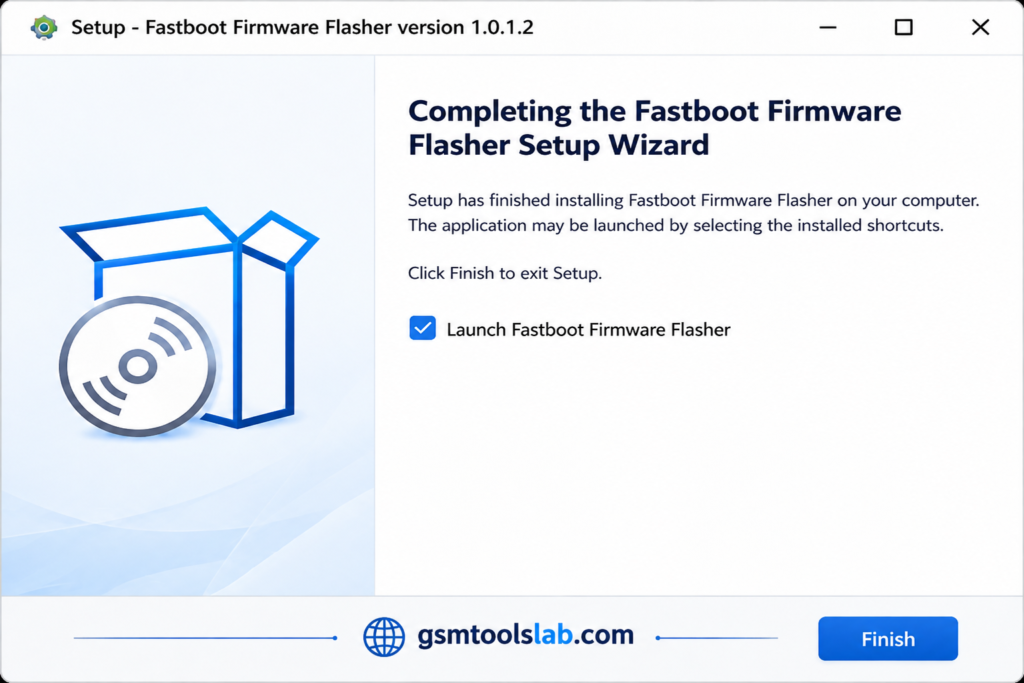
- Download from gsmtoolslab.com or from a trusted source.
- Extract the archive with WinRAR or 7-Zip into its own folder.
- Scan the files with antivirus before you open them.
- Install the Android USB drivers.
- Run the tool as administrator.
- Turn the phone off, then boot it into Fastboot mode and connect it by USB.
- Load the firmware or pick the partition, then start.
- Keep the cable connected until the job ends.
If the phone is not detected, try another cable or USB port and reinstall the drivers.
Fastboot Flash Tool Pros and Cons
| Pros | Cons |
|---|---|
| Light and simple Windows screen | Only works on Fastboot-ready phones |
| Partition-level flashing | Wrong firmware can cause a boot loop |
| No dongle needed | Support varies by model and firmware |
| Fastboot to EDL on some Qualcomm phones | No confirmed official site or license |
Conclusion
Fastboot Flash Tool V1.0.1.2 is a Windows utility for Android technicians who need firmware flashing and bootloader servicing. It supports partition selection for boot, recovery, system, vendor, and userdata, helping address software bootloops, failed updates, and common Fastboot errors. With ADB and Fastboot drivers, selected Qualcomm EDL functions, MediaTek scatter files, and BAT scripts, it offers flexible repair options. Before downloading, verify the package, match firmware to your device model, check compatibility, back up data, and follow safe flashing steps.
Fastboot Flash Tool FAQ’s
What is Fastboot Flash Tool used for?
It is used to flash firmware and partitions on Android phones through the bootloader. Common jobs are stock firmware restore, bootloop repair, and Fastboot error fixes.
Is Fastboot Flash Tool free?
Many third-party sites call it free. No official terms confirm this, so check before business use.
Which brands does Fastboot Flash Tool support?
Xiaomi, Redmi, POCO, OnePlus, Motorola, Nokia, Realme, Oppo, and Huawei. Support depends on the model and firmware.
Does it support scatter and BAT files?
Scatter files are for MediaTek firmware, and BAT files run scripts for automatic flashing.
Does Fastboot flashing erase my data?
It can, depending on the method and the partitions you flash. Back up first.
How do I exit Fastboot mode?
Hold the Power button for 15 to 20 seconds to restart. If that fails, hold Power with a Volume key until the screen turns off. This can differ by phone.
One Comment