BFT Tool Guide | How to Use BFT v1.8 Free | Flashing, Repair, and Troubleshooting

Android phones do not always break in the same way. Sometimes the screen is fine, but the phone is stuck on the logo. Sometimes it starts, but a Google account lock stops you. Sometimes the software is just broken. Old repair tricks often fail here. This BFT Tool Guide shows you a simple and safe way to fix these problems with BFT Tool v1.8.
BFT is a Windows program. Many websites link it to BossV and the Miracle Team. It works with three big chipset families: MediaTek (MTK), Qualcomm Snapdragon, and SPD/Unisoc. Because of this, a technician can do many jobs in one window. In this BFT Tool Guide, you will learn what the tool does, how to prepare, how to avoid mistakes, and how to fix common errors.
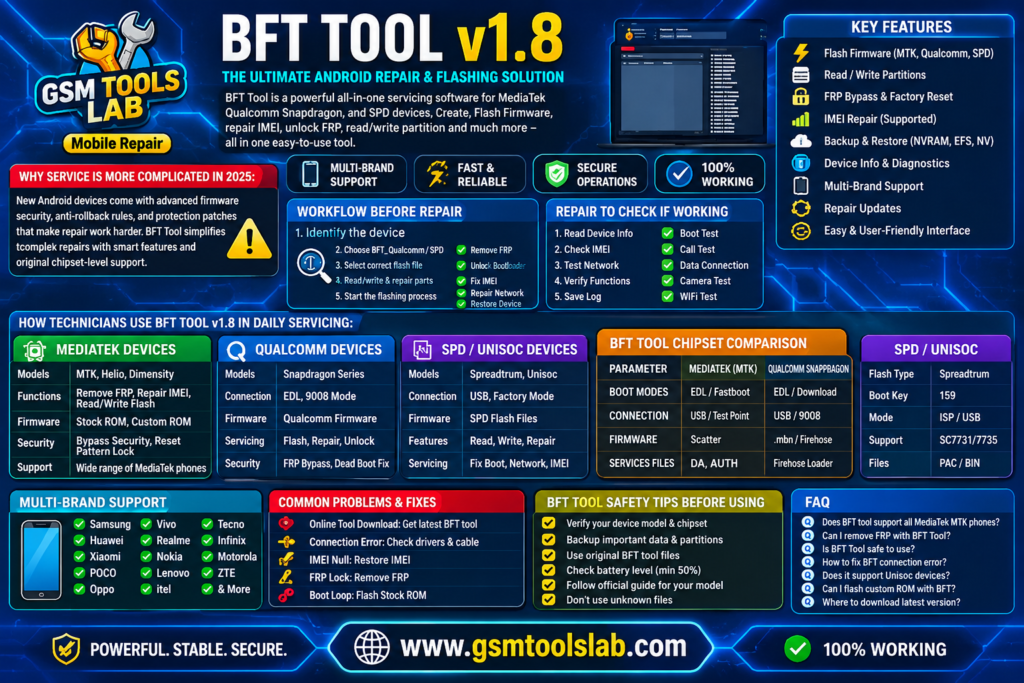
Download Link: BFT Tool V1.8 Updated 2027
Visit for more tools: https://gsmtoolslab.com
Why Android Servicing Become More Complicated Day by Day?
Phones in 2027 are not simple anymore. New models come with new chipsets, new firmware, and stronger security. Two phones can have the same problem, but each may need a different fix. One may use MediaTek. Another may use Qualcomm or Unisoc. Each chipset has its own firmware files, drivers, and connection modes.
Beginners often make one big mistake. They flash first and think later. They do not find the real problem, so the repair fails. The customer then loses trust. That is why every good BFT Tool Guide starts with one rule: understand the phone before you touch the tool.
A technician should always check these things first:
- Which chipset does the phone use?
- Can the phone start normally?
- Which connection mode works?
- Is the correct USB driver installed?
- Which firmware matches the exact model?
- Is the problem in software, security, or hardware?
- Does any user data need to be saved?
A wrong step can turn a small software problem into a big one.
Where BFT Tool v1.8 Fits in a Technician’s Workflow
Think of BFT Tool v1.8 as a general repair tool, not a one-problem tool. You first find the phone’s problem. Then you pick the right job based on the chipset and the connection mode. A phone stuck on the logo may need firmware flashing. A phone that starts but has a setting or security issue needs a different step. This way, you do not treat every Android problem the same.
Reports say the v1.8 update adds faster work, better Qualcomm support, more automatic functions, and support for more than 250 new Android models. Treat this as a helpful hint, not a promise. Support always depends on your exact phone.
What Workflow Should You Follow Before Repairing in 2027?
Good repair shops follow the same order every time. This is the easy way to use the BFT Tool Guide in daily work:
Diagnose → Identify chipset → Check connection → Verify firmware → Choose operation → Repair → Test the phone
This order saves time. It also lowers the risk of bricking a phone. (“Bricking” means the phone stops working and acts like a brick.)
Identify the Device
First, write down the phone’s details. Do not trust only the marketing name. Two versions of one phone can use different hardware.
- Exact model number and variant
- Chipset (MediaTek, Qualcomm, or Unisoc)
- Android version
- Build number and security patch
- Storage and RAM
- Baseband and software version
- Bootloader status (locked or unlocked)
- Current mode (ADB, Fastboot, EDL, BROM)
- FRP and Google account status
- IMEI and network status
Where to Check This Information
You can find most details in the phone settings. You can also look up the model on GSMArena, a site that lists phone specs.
| Information | Where to Check |
|---|---|
| Model and variant | Settings → About Phone, or the label on the phone |
| Android version | Settings → About Phone |
| Build number | Settings → About Phone → Software Information |
| Security patch | Settings → Security & Privacy |
| RAM and storage | Settings → Storage |
| Chipset | Device info apps, ADB, or BFT Tool detection |
| Baseband version | Settings → About Phone → Software Information |
| IMEI | Dial *#06# or check the phone label |
| Bootloader status | Fastboot mode |
| FRP status | Settings → Accounts |
| Device mode | Windows Device Manager, ADB/Fastboot, or BFT Tool |
Check the Current Condition of the Phone
Next, see what the phone does. Does it start into Android? Is it stuck on the logo? Can it enter recovery or Fastboot? Does the computer see it? Has someone changed its software before? These answers show you the right path.
Install the Correct Drivers
Windows must talk to the phone before the tool can work. Depending on the phone, you may need Android USB, MediaTek, Qualcomm, or Unisoc drivers. If the phone keeps connecting and disconnecting, or shows as “unknown device,” check the drivers first.
Verify the Firmware
Firmware is the main software inside a phone. Use only the file made for your exact model, region, and hardware version. A file that looks right but belongs to a nearby model can cause real damage.
Choose the Least Destructive Operation
Not every problem needs a full flash. If a simple reset or a small repair can solve it, choose that first. Extra changes raise the risk.
How Technicians Use BFT Tool v1.8 in Daily Servicing
BFT Tool is built around three chipset families. Each one has its own rules. Here is how each one works.
MediaTek (MTK) Devices
- Connection modes: BROM, Preloader, and Meta Mode
- How to connect: Turn the phone off, plug in the USB cable, and use the right key combination
- Firmware type: Scatter-based packages
- Common jobs: Device information, NVM work, factory reset, and some eMMC/UFS functions
- Watch out for: MediaTek security and sign-in rules can limit what you can do
Qualcomm Snapdragon Devices
- Connection modes: EDL (Emergency Download Mode) and Diag Mode
- How to connect: USB cable, a supported EDL method, or a model-specific step
- Firmware type: Firehose programmer, Program XML, and Patch XML files
- Common jobs: Firmware flashing, device information, and QCN backup or restore
- Watch out for: Features depend on the Snapdragon chip, model, firmware, and sign-in rights
Qualcomm packages often have many files. So pick the firmware for the exact model and region.
SPD / Unisoc Devices
- Connection modes: Unisoc Flash Mode and Diag Mode
- How to connect: Turn the phone off and use the correct boot key for that model
- Firmware type: PAC and CFG files
- Platforms named in reports: SC7731E, SC9863A, T310, T606, T612, and T616
- Common jobs: Firmware flashing, device information, and Diag or IMEI repair where supported
This is helpful for shops that fix many low-cost phones, because many of them use Unisoc chips.
BFT Tool Guide Chipset Comparison Table
| Parameter | MediaTek (MTK) | Qualcomm Snapdragon | SPD / Unisoc |
|---|---|---|---|
| Boot modes | BROM, Preloader, Meta | EDL, Diag | Flash, Diag |
| Connection | Volume keys + USB | EDL method + USB | Boot key + USB |
| Firmware type | Scatter | Firehose + XML | PAC / CFG |
| Service files | NVM | QCN | NV / Diag |
MTK, Qualcomm, and SPD Need Different Approaches
Why not use one method for all phones? Because the inside of each phone is different. The loader, the driver, and the way the phone talks to the PC all change from chipset to chipset. So the key lesson in this BFT Tool Guide is simple: find the chipset first, then pick the job.
BFT Tool Guide and Multi-Brand Servicing
A busy repair shop sees many brands in one day. Using a different tool for each brand wastes time. BFT Tool is often used on phones from these brands:
- Samsung
- Xiaomi
- Redmi
- POCO
- Oppo
- Vivo
- Realme
- Infinix
- Tecno
- itel
- Motorola
- Nokia
- Huawei
- ZTE
Remember this: brand support is not the same as model support. The real method depends on the chipset, the software version, the security level, and the connection mode. Always check your exact model.
A Better Way to Diagnose a Software Problem
The biggest mistake in mobile repair is to format or flash a phone right away. A better way is to follow the steps above: identify, check condition, install drivers, verify firmware, and pick the lightest fix. A few minutes of checking can save hours of work. This is the core idea behind every useful BFT Tool Guide.
Why Firmware Verification Matters
Flashing is powerful, but it is also where most big mistakes happen. Before you flash, check this chain:
Device model → Chipset → Firmware version → Region/build → Required files → Connection mode
A file may look right because the brand and model family match. But a small hardware difference can make it wrong. Keep a backup of important data and partitions when you can. Follow the exact steps for your phone.
Understanding FRP Before Performing a Reset
FRP is an Android safety feature. If someone resets a phone without permission, FRP asks for the old Google account. This protects lost or stolen phones.
A repair shop may encounter FRP after a reset during service. BFT Tool v1.8 has FRP-related functions on some supported models. Results depend on the model, Android version, chipset, security patch, and connection method. Only use FRP functions when the owner agrees and can show proof the phone is theirs. This is the legal and honest way to work in the USA, UK, Canada, Australia, and Europe.
IMEI Repair Requires Extra Care
IMEI is the unique number that tells mobile networks which phone is which. Reports say BFT Tool can help with IMEI repair on some MTK and Qualcomm devices. But laws about IMEI are strict in many countries. Use IMEI repair only for real repair cases, such as restoring the number after approved board-level work. Never change an IMEI to hide a stolen phone.
Common BFT Tool Problems and Fixes
Start with the simple checks.
Device Not Detected
Check: Open Windows Device Manager. Is the phone there, or does it show an error? Fix: Install the right MTK, Qualcomm, or Unisoc USB driver. Try another USB port. Reconnect the phone in the needed mode.
Connection Keeps Dropping
Check: The cable, the port, and how firmly it is plugged in. Fix: Use a good data cable (some cables only charge). Plug straight into the PC, not a USB hub. Do not move the cable during work.
BFT Tool Does Not Launch
Check: A missing DLL or runtime error, such as MSVCR100.dll or MSVCP100.dll. Fix: Install the right Microsoft Visual C++ Redistributable from Microsoft and restart Windows. Do not download random DLL files from the web. They can carry viruses.
“Failed to Check for New Version” Error
Check: Your internet, firewall, antivirus, and any VPN or proxy. Fix: Run BFT Tool as administrator, allow it through the firewall, and turn off the VPN for a test. Some users also report server problems after the v1.8 update, so wait and try again later.
Flashing Gets Stuck
Check: The firmware, the driver, the loader, and the connection. Fix: Stop. Find out why it failed before trying again. Do not start random flashes. Use firmware for the exact model and variant.
Preparing a PC for Android Servicing
A clean computer makes a big difference. Before you follow any BFT Tool Guide step, get your PC ready. Reports list these needs for BFT:
- Windows 7, 8, 10, or 11
- At least 4 GB of RAM (8 GB is better and smoother)
- Updated Windows
- Android USB, MTK, Qualcomm, and Unisoc drivers where needed
- Good USB cables
- Enough free disk space
- Correct firmware packages
- Stable power for the PC
Also, keep your firmware folders neat. Name them by brand, model, chipset, and version. This helps you avoid picking the wrong file.
BFT Tool v1.8 as Part of a Repair Toolkit
The best part of BFT is convenience. Flashing, reset jobs, device info, and chipset work sit in one Windows program. But no tool can fix a wrong file, a missing driver, a broken USB port, or a hardware fault. So even with the best BFT Tool Guide, good diagnosis comes first.
Is BFT Tool v1.8 Suitable for Beginners?
The layout is fairly simple, but many functions are for people who know Android repair. A beginner should first learn these pairs:
- Factory reset vs. firmware flashing
- FRP vs. screen lock
- Bootloader vs. recovery
- MTK, Qualcomm, and Unisoc modes
- USB drivers vs. device detection
- Firmware files vs. loaders
Practice only on phones you have permission to fix, and back up data first. A good BFT Tool Guide always puts safety before speed.
Safety Tips Before Using the BFT Tool
- Check the exact device model and variant.
- Use trusted firmware that matches the phone.
- Install the correct USB drivers.
- Charge the phone enough.
- Use a stable cable and a direct USB port.
- Back up data and partitions when possible.
- Never unplug the phone during flashing.
- Read the selected operation before you click Start.
- Never use firmware made for another model.
- Download the tool only from a source you trust, and scan it. Fake installers are common.
Conclusion
BFT Tool v1.8 lets technicians work on MediaTek, Qualcomm Snapdragon and SPD/Unisoc phones from one Windows window. It can flash firmware and help with many repair and check tasks. Still, success depends on the right model, firmware, drivers, cable, and job. Check support before every step. We hope this BFT Tool Guide helps you work faster and safer. For the setup file, system requirements, and installation steps, visit our main BFT Tool v1.8 download page.
Frequently Asked Questions (FAQs)
What Is BFT Tool v1.8 Used For?
BFT Tool v1.8 is a Windows program for supported Android phones that use MTK, Qualcomm, or SPD/Unisoc chips. It can help with firmware flashing, device information, reset jobs, FRP-related work, and other repair tasks. The exact functions depend on the phone model and its security level.
Why Is My Phone Not Detected by the BFT Tool?
The usual causes are missing drivers, the wrong connection mode, a bad cable or port, or a phone that BFT does not support. Open Windows Device Manager to see if the phone shows up. Then try another cable and another USB port.
Does BFT Tool Erase User Data?
Some jobs can erase data, such as firmware flashing, factory reset, screen lock service, and FRP work. Always back up your files and partitions before you start.
What Firmware Formats Does BFT Tool Support?
It depends on the chipset. MediaTek mostly uses Scatter files. Qualcomm uses Firehose, Program XML, and Patch XML files. Unisoc/SPD mostly uses PAC or CFG files.
Why Does BFT Tool Show “Failed to Check for New Version”?
This usually means the tool cannot reach its update server. Check your internet, firewall, antivirus, and VPN or proxy. Then run the tool as administrator. If the server is down, wait and try again.
Can BFT Tool Flash All Android Devices?
No. Support changes with the model, chipset, firmware, and security level. A function that works on one phone may not work on another. Always check your exact model first.
Is BFT Tool Safe, and Is It Free?
BFT Tool is free for supported devices, but safety depends on where you get it and how you use it. Download only from a trusted source, scan the file, and use the right firmware. Wrong firmware or a broken flash can cause boot failure, data loss, or a bricked phone.