iTools v4.5.1.9 Download Free Updated Version [2027]

Managing an iPhone, iPad, or iPod Touch with iTunes can feel slow and hard. You open iTunes, you wait, and you still cannot find a simple way to move one photo or one song. iTools solves this problem. It is a small and easy tool for your Windows PC. With it, you can move files, save a full backup, make ringtones, and check your device in a few clicks.
In this guide, you will learn what the tool does, how to download and install it, and how to use its main features. Every step is written in simple words, so a new user, a shop technician, and a home user in the USA, UK, Canada, Australia, UAE, Pakistan, India, or any Tier 1 and Tier 2 market can follow it with ease.
Also Read Trusted Tools: BFT Tool Failed to Check for New Version | Amlogic USB Burning Tool
What is iTools?
iTools is an iOS device management tool made by ThinkSky Technology. It works on Windows and Mac and helps you to manage your iPhone, iPad, and iPod Touch from your computer. Many users use it as a simple alternative to Apple iTunes. It can transfer photos, videos, music, contacts, and other files. You can also back up your data, restore a backup, manage apps, and use Virtual Location. You do not need great technical skill. The home screen shows each task in a clear way, and most jobs take only one or two clicks.
Why Use iTools?
Fast Performance
The setup is light, at only 73.9 MB. The tool runs well even on old PCs with low RAM. File transfer is fast, and you can move many songs or photos at the same time.
Supports Modern Devices
The tool supports many iPhone, iPad, and iPod Touch models. It works with Windows 7, 8, 8.1, 10, and 11, so most users do not need a new computer to use it.
Supported Functions
- Ringtone Creation
- Photo Transfer
- Video Transfer
- Music Management
- Contact Management
- SMS Backup
- App Installation and App Management
- Device Backup
- Device Restore
- File Explorer
- Virtual GPS Location
- Battery Details and Device Information
- Screen Mirroring in supported versions
Key Features of iTools 2027
Backup & Restore
You can back up your full device to your PC in one click. If you lose data or if you buy a new phone, you can restore the backup to the device. This keeps your photos, contacts, messages, and app data safe and helps you stop data loss.
Fast File Transfer
Move files both ways — from PC to iPhone, and from iPhone to PC. The tool supports photos, videos, music, books, and documents. Drag-and-drop makes the job quick, with no forced sync like in iTunes.
Photo and Video Management
You can import, export, preview, and sort photos and videos. You can see a photo on your big PC screen before you save it. One-click photo export is a top reason home users and photo shops love this feature.
Music and Ringtone Maker
Add, remove, and sort music on your device. The Ringtone Maker lets you cut any song and turn it into a custom ringtone for your iPhone. The tool supports many audio formats, and you can move more than one song at a time.
App Management
Install, uninstall, and back up apps from your PC. This is very useful for technicians who set up many devices in one day. Please note: some app actions can change with new iOS rules from Apple.
Virtual Location
Virtual Location lets you set a fake GPS location on your iPhone or iPad. App makers use it to test location-based apps. Users also use it for privacy and for games. You can pick a point on the map, and you can use Move, Walking, and Pin modes in supported versions. Restart your device, and your real location comes back.
Battery Details
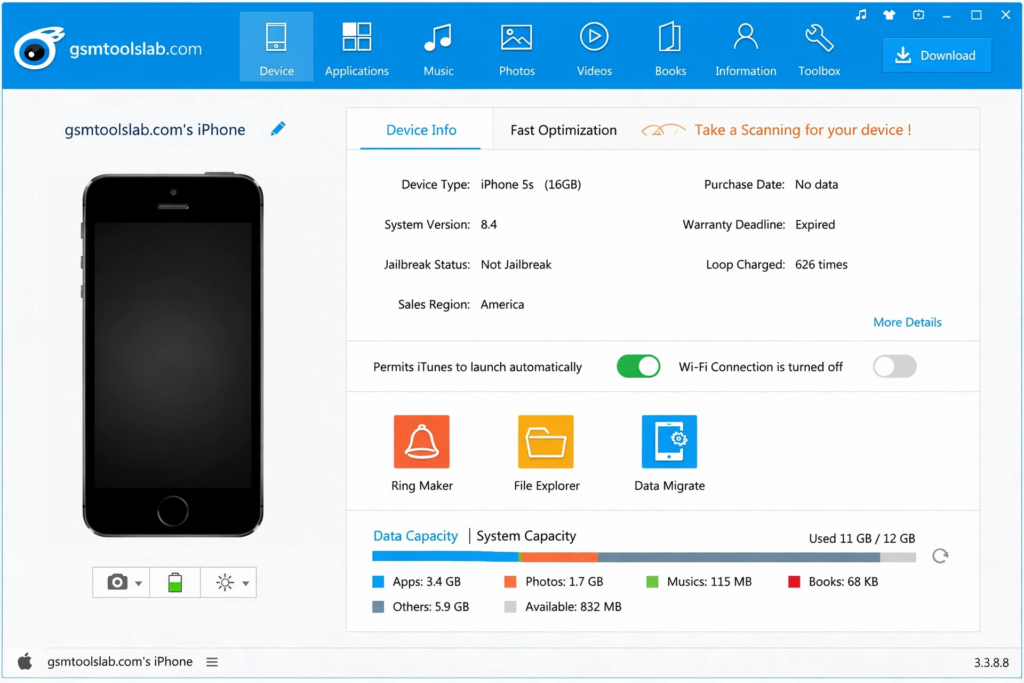
The tool shows battery health, charge cycles, and full device information, like model, storage, and iOS version. This is a big help when you buy a used iPhone and want to check it first.
Device Management
From one dashboard, you manage photos, contacts, messages, videos, and apps. You see all key device details in one place, so you do not need five small tools for five small jobs.
User Interface
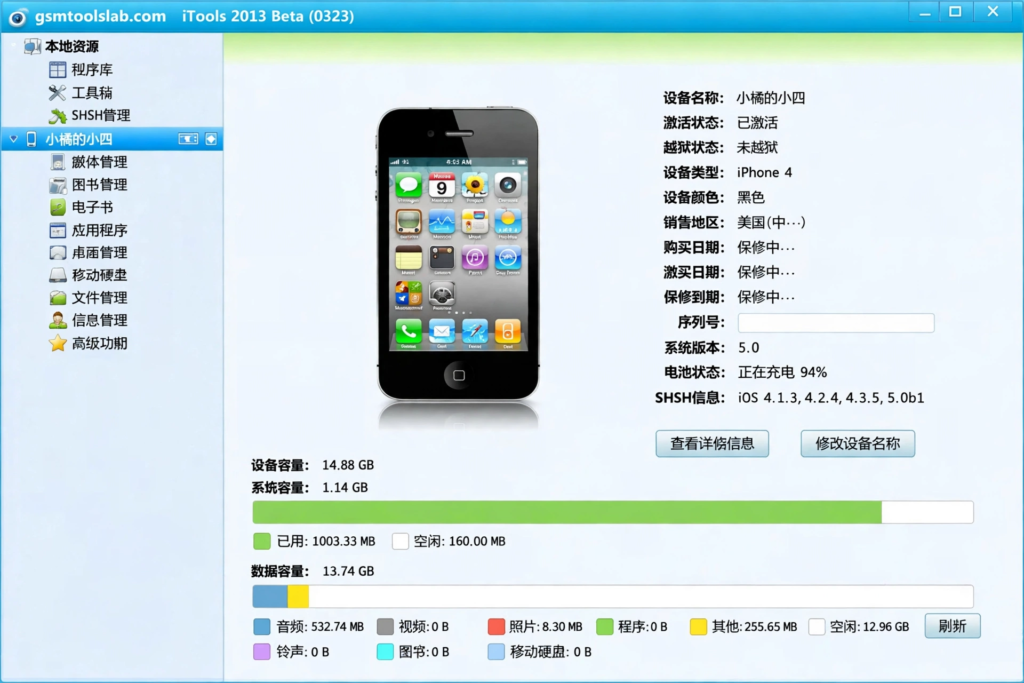
The design is well-built and user-friendly. Each tool has its own clear box on the home screen. There is no long learning curve for new users.
What’s New in iTools?
ThinkSky lists version 4.5.1.9 as the current Windows release. The company has not shared a full public change log for this one build, so no site can honestly list exact new changes for it. Based on the release line, the main focus areas in this build are:
- Improved iPhone and iPad device management
- Better file transfer and media organization
- Updated backup and restore functions
- Improved music transfer and ringtone creation
- Virtual Location feature enhancements
- Updated Windows 11 and Windows 10 compatibility
- Expanded iOS device support
File Information
| File Information | Details |
| Software Name | iTools |
| Version | v4.5.1.9 |
| File Size | 73.9 MB |
| File Format | EXE |
| File Name | itoolssetup_4.5.1.9_en.exe |
| Developer | ThinkSky Technology |
| Platform | Windows (also available for Mac) |
| File Password | 123 |
| License | Free / Trial — some advanced features need a paid license |
| Category | iOS Device Manager / iTunes Alternative |
iTools v4.5.1.9 System Requirements
| Component | Minimum Requirement |
| Operating System | Windows 7 / 8 / 8.1 / 10 / 11 |
| Processor | Intel or AMD CPU |
| RAM | 1 GB to 2 GB |
| Storage | 100 MB free space |
| USB | Working USB port and data cable |
| Internet | Needed for updates and some features |
| Extra | iTunes drivers may be needed for device detection |
How to Download & Install iTools Setup?
- Download the iTools v4.5.1.9 setup from a trusted source or from the button, and save the file on your PC.
- Extract the ZIP file if your download comes as a ZIP. Use the password given in the File Information table.
- Right-click the setup file and select Run as Administrator.
- Read and accept the license agreement.
- Select the folder where you want to install the tool, then follow the on-screen steps.
- Finish the setup and open the tool from the desktop shortcut.
- Connect your iPhone or iPad to the PC with a USB cable.
- Tap Trust on your Apple device if it asks you.
- Wait a few seconds. The tool will detect your device, and you can start work.
iTools vs iTunes — Which One Is Better?
| Point | iTools | Apple iTunes |
| Main job | Direct device and file management | Media library and sync |
| File transfer | Drag and drop, both ways | Sync-based, less direct |
| Backup | One-click backup and restore | Full backup and restore |
| Ringtone | Built-in Ringtone Maker | Manual and slow process |
| Virtual Location | Yes, in supported versions | No |
| Battery details | Yes, full device info | Very basic info |
| Size and speed | Light, 73.9 MB setup | Heavy and slow on many PCs |
| Cost | Free / Trial, paid license for pro features | Free |
Common Problems and Easy Fixes
| Problem | Easy Fix |
| Device is not detected | Change the USB cable, use a direct PC port, unlock the phone, and tap Trust. Reinstall the Apple Mobile Device driver if needed. |
| Setup will not open | Right-click the file and choose Run as Administrator. Turn off your antivirus for the install only if it blocks a clean, scanned file. |
| Transfer stops in the middle | Free up space on the phone and the PC, keep the cable firm, and move files in small groups. |
| Virtual Location does not change | Check that the phone stays linked, pick the point on the map again, and restart the phone to reset GPS. |
| Backup takes too long | Close other apps on the PC, use a fast USB port, and do not lock or unplug the phone during the backup. |
Pros & Cons
| Pros | Cons |
| Easy-to-use, clean interface | Some advanced features require a premium license |
| Fast file transfers, both ways | May have compatibility issues with some newer iOS versions |
| One-click backup and restore | Limited official support compared with Apple software |
| Virtual GPS / Virtual Location feature | No detailed public change log for version 4.5.1.9 |
| Supports most iPhone, iPad, and iPod Touch models | No Linux version |
| Lightweight software, runs on old PCs | iTunes drivers may be needed for detection |
| One-click photo export | — |
Conclusion
iTools v4.5.1.9 is a simple, fast, and useful way to manage an iPhone, iPad, or iPod Touch from a Windows PC. It gives you file transfer, photo and video care, music and ringtone tools, one-click backup and restore, battery details, and Virtual Location in one place. For home users, students, and GSM technicians who find iTunes slow and hard, this is one of the best iTunes alternatives you can use today. Download it from a trusted source, install it in two minutes, and take full control of your iOS device.
FAQs
1. Is iTools v4.5.1.9 free to use?
Yes. You can download it for free and use basic features like file transfer, photo export, and backup at no cost. Some advanced features, like full Virtual Location use, need a paid Premium or Platinum license from ThinkSky.
2. Can iTools replace iTunes?
For most daily jobs — file transfer, media management, backup, restore, and ringtone making — yes, it can replace iTunes. For Apple account services, firmware updates, and full Apple sync, you may still need iTunes or the Apple Devices app.
3. Does iTools v4.5.1.9 work on Windows 11?
Yes. This version works on Windows 11, Windows 10, Windows 8.1, Windows 8, and Windows 7. It also has a Mac version for macOS users.
4. Can I transfer music from PC to iPhone with iTools?
Yes. You can move music, videos, photos, and other files from PC to iPhone, and from iPhone to PC, with simple drag and drop. You can move many songs at the same time.
5. Can I back up my iPhone with iTools?
Yes. The Backup & Restore feature saves your device data to your PC in one click. You can restore the same backup later if you lose data or move to a new device.
6. What is the Virtual Location feature in iTools?
Virtual Location lets you set a fake GPS location on your iPhone or iPad. Developers use it to test location apps, and users use it for privacy and games. Restart the device, and the real GPS location returns.
7. Is iTools safe to install?
Yes, if you get it from the official ThinkSky site or a trusted source like GSMToolsLab, and you scan the file before you install it. Stay away from cracked or modified files from unknown sites, as they can carry malware.