Amlogic USB Burning Tool V3.3.1 Download for Windows Latest Setup

An Android TV box that is stuck on the boot logo, will not start after an update, or has broken firmware can feel dead. Amlogic USB Burning Tool is a Windows program that writes stock firmware to boxes built on Amlogic chips. It can upgrade, downgrade, and restore a box over a USB cable.
Also Read Trusted Tools: Avatar Auth Tool | The Ghost Tool
What Is Amlogic USB Burning Tool?
Amlogic is a chip company that makes processors for Android TV boxes, tablets, and media players. Amlogic USB Burning Tool is a Windows application that talks to these chips over USB. “Burning” means writing firmware to the box’s storage. The tool loads an .img firmware file and writes it in flashing mode. It is made for Amlogic devices only. It does not work on Qualcomm, MediaTek, or Samsung phones.
Key Features of Amlogic USB Burning Tool
Firmware Flashing
The main job. It writes stock firmware to a compatible box. The firmware must match the exact model and hardware.
Firmware Upgrade and Downgrade
You can move to a newer or an older firmware if the file allows it. A downgrade can cause problems, so check first.
Brick Recovery
It can help with boot loops, a frozen logo, or a failed update. It cannot fix hardware damage or a badly damaged bootloader.
Flash Erase Options
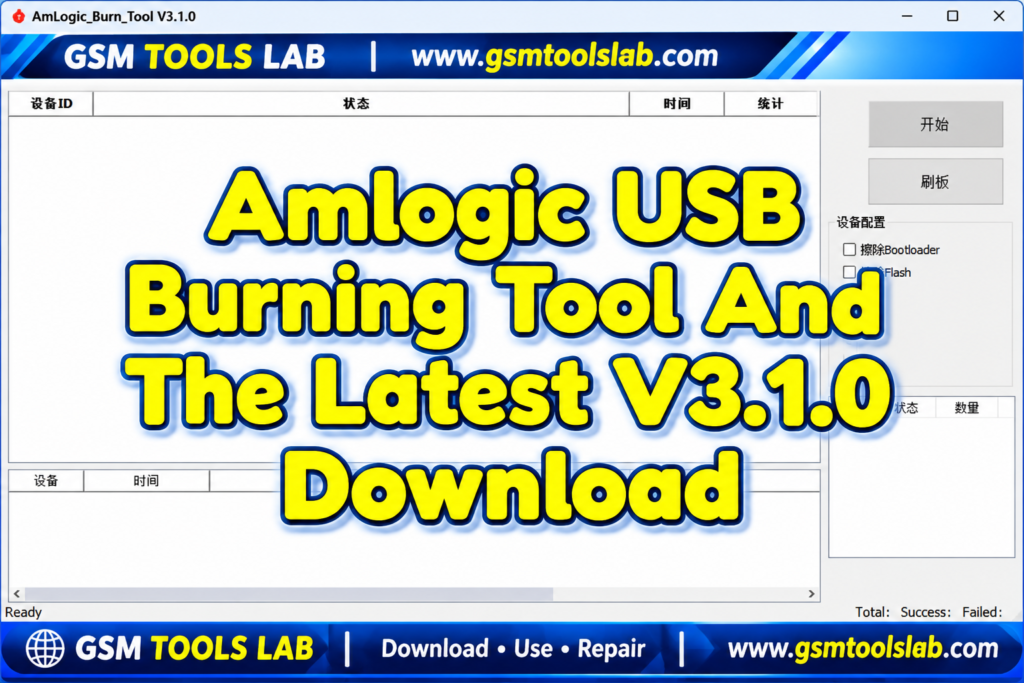
Normal Erase, Force Erase, Erase All, and Force Erase All. Wrong settings can cause errors or data loss.
Bootloader and Key Settings
Options such as Erase Bootloader, Overwrite Key, and Reset After Success are listed. Leave Overwrite Key unchecked unless your firmware says otherwise.
Device Data View
A status window shows the connection, the progress, and device details during a flash.
What’s New in V3.3.1?
- Support for newer Amlogic chips.
- Better USB connection handling.
Supported Chips and Devices
| Group | Details |
|---|---|
| Chips named on pages | S805, S905, S905W2, S912, S922X |
| Newer chips on some pages | T972, A311D2, S905D3, S905X4, S928X |
| Devices | X96 Mini, X96 Max, X96 Max Plus, Tanix, and other TV boxes |
| Firmware file | .img (.zip and .tar) |
| Mode | USB burning mode on the box |
Download Information
| Detail | Information |
|---|---|
| Tool Name | Amlogic USB Burning Tool (DOWNLOAD TOOL) |
| Version | V3.3.1 |
| File Size | About 37.5 MB |
| File Type | ZIP or EXE |
| Platform | Windows, 32-bit or 64-bit |
Amlogic USB Burning Tool System Requirements
| Requirement | Details |
|---|---|
| Operating System | Windows 7, 8, 10, or 11 |
| Processor | Intel or AMD |
| RAM | 2 GB or more |
| Storage | 500 MB free |
| Drivers | Amlogic USB driver (WorldCup device) |
| Other | USB cable and a firmware image for your exact box |
How to Download and Use the Tool
- Visit the trusted download website and download Amlogic USB Burning Tool V3.3.1 for your Windows PC.
- Extract the archive with WinRAR or 7-Zip into its own folder.
- Scan the files with antivirus before you open them.
- Run the tool as administrator and install the driver when asked.
- Download the firmware for your exact box and extract it.
- Power the box off, connect it to the PC with a USB cable, and put it in burning mode. Many boxes use a reset button inside a small hole, and some use a long power press of about 5 to 6 seconds. This differs by model.
- Check that the tool shows the box as connected.
- Click File, then Import Image, and pick the firmware file.
- Leave Overwrite Key unchecked, then click Start.
- Wait for 100% success, click Stop, disconnect, and power on the box. Do not unplug it during flashing.
Pros and Cons
| Pros | Cons |
|---|---|
| Free to download | Amlogic devices only |
| Flashes stock firmware on TV boxes | Wrong firmware can brick a box |
| Upgrade, downgrade, and erase options | Flashing can erase data |
| Simple Windows screen | Needs the right driver and burning mode |
Conclusion
Amlogic USB Burning Tool V3.3.1 is a useful Windows utility for flashing, upgrading, downgrading, and restoring firmware on compatible Amlogic Android TV boxes. It can help recover devices affected by boot loops, failed updates, or corrupted firmware. With its USB burning mode, firmware erase options, and simple interface, it makes software repair easier. Before flashing, install the correct USB driver, select firmware that matches your exact TV box model, and follow the steps carefully to avoid data loss or device damage.
Frequently Asked Questions
What is Amlogic USB Burning Tool used for?
It is used to flash, upgrade, downgrade, and restore firmware on Amlogic-based Android TV boxes.
Can Amlogic USB Burning Tool fix a bricked TV box?
It can fix a soft brick if you use a compatible firmware and the box enters burning mode. It cannot fix hardware faults.
Does Amlogic USB Burning Tool erase data?
Yes, flashing and erase options can delete your data. Back up first.
Can I use firmware from another Amlogic box?
No. Boxes with the same chip can have different memory and bootloaders. Use the firmware made for your model.
Why is my box not detected?
Install the Amlogic USB driver, try another cable or USB port, and put the box in burning mode. An old tool version may not support a new chip.