BFT Tool Failed to Check for New Version 100% Tested (2027)

You open BFT Tool, and before doing work, a message pops up: “BFT Tool Failed to Check for New Version.” The tool will not move forward. Most common errors technicians see with BFT Tool v1.8 are almost always a simple network or security problem on your Windows PC, not a problem with your phone.
In this guide, you will learn what this error really means, every common cause, and clear step-by-step fixes. We also cover the related MSVCR100.dll and MSVCP100.dll errors, how to find your real cause fast, and safety tips so you do not make the problem worse.
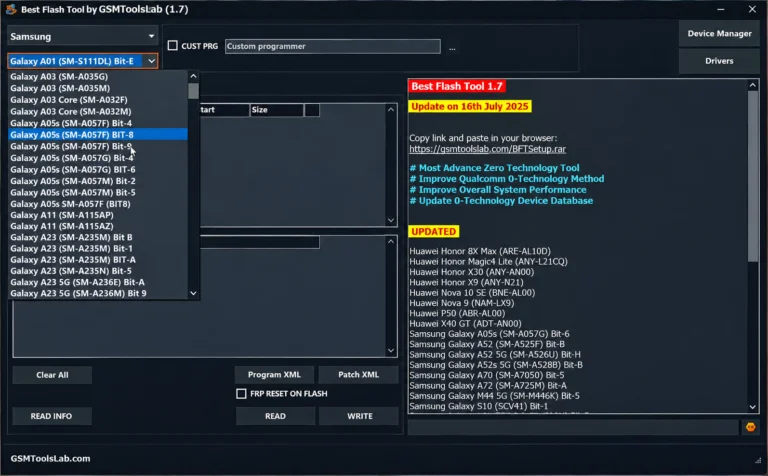
Download The Tool From Here: BFT Tool v1.8 Updated
What Does “BFT Tool Failed to Check for New Version” Mean?
BFT Tool checks its own update server every time it starts. This is normal for most flashing and repair tools; they want to confirm you are using a safe, working version before you begin any job. If the tool cannot reach that server, it stops and shows this error instead of opening fully.
This does not mean your phone is broken. It means your PC, your network, or the tool’s server cannot complete that one small check. The fix is almost always on the computer side.
Why Does This Error Appear on BFT Tool?
Windows Firewall Is Blocking the Tool
Windows Firewall decides which programs can send and receive data online. If it does not trust BFT Tool yet, it can quietly block the update check.
Antivirus or Windows Security Is Blocking It
Many antivirus programs treat flashing tools like BFT as “unknown” or “risky” software, since this is how real malware often behaves too. They may quarantine the file or block its internet access without a clear warning.
VPN, Proxy, or DNS Problems
A VPN or proxy changes the path your data takes online. This can confuse the tool’s connection to its own server. A broken or slow DNS setting causes the same kind of failure.
Wrong Date, Time, or Time Zone
Secure online connections check your system clock. If your Windows date or time is wrong, even by a few minutes, some secure connections can fail silently.
Old Windows or Missing Runtime Files
BFT Tool needs certain Microsoft components to run correctly, such as the Visual C++ Redistributable, .NET Framework, or DirectX. An outdated Windows version or missing files can stop the tool from working properly, including its update check.
Old or Damaged BFT Tool Files
A tool copied from an unreliable source, a half-finished download, or a mix of files from two different versions can break the startup process.
BFT Update Server Is Temporarily Down
Sometimes the problem is not on your side at all. The BFT update server itself may be down, overloaded, or doing maintenance. In this case, no fix on your PC will help until the server is back online.
How to Fix This BFT Tool Error
Follow these fixes in order. Most people solve the error within 10 to 15 minutes without reinstalling Windows or doing anything to their phone.
Fix 1: Check Your Internet Connection
Open a browser and load two or three different websites. If they load fine, your basic internet works, and the problem is likely specific to BFT Tool. If nothing loads, restart your router or modem, wait one minute, and try again.
Fix 2: Fully Restart BFT Tool
Close the tool completely. Open Task Manager (press Ctrl + Shift + Esc), look for any leftover BFT Tool process, and end it. Then open the tool again. A stuck background process can block a fresh connection attempt.
Fix 3: Run BFT Tool as Administrator
Right-click the BFT Tool shortcut or executable file and choose “Run as administrator.” Some network and security checks need extra permission to pass. You can also set this permanently: right-click the file, go to Properties, open the Compatibility tab, and tick “Run this program as an administrator.”
Fix 4: Allow BFT Tool Through Windows Firewall
- Open Windows Security.
- Go to Firewall & Network Protection.
- Click “Allow an app through firewall.”
- Find BFT Tool in the list (or click “Change settings” and “Allow another app” to add it).
- Tick both the Private and Public network boxes.
- Save the changes and restart the tool.
Do not turn off the firewall completely. Allowing the one app is safer and does the same job.
Fix 5: Check Your Antivirus Settings
Open your antivirus program and look at its quarantine list and blocked-app list. If you see BFT Tool there, remove the block. If you downloaded the file from a source you are not fully sure about, scan it first before you add any exception, just to be safe.
Fix 6: Turn Off VPN or Proxy Temporarily
Disconnect any VPN app. Then check Settings → Network & Internet → Proxy, and turn off any manual proxy setting you are not using on purpose. Try BFT Tool again.
Fix 7: Fix DNS Problems
Open Command Prompt as administrator and run these two commands, one at a time:
ipconfig /flushdns
netsh winsock reset
Restart your PC afterward. If the problem continues, you can switch your DNS to a public option such as Google DNS (8.8.8.8) or Cloudflare DNS (1.1.1.1) in your network adapter settings.
Fix 8: Correct Your Date, Time, and Time Zone
Go to Settings → Time & Language → Date & Time. Turn on “Set time automatically” and “Set time zone automatically,” then click “Sync now.” Restart BFT Tool and test again.
Fix 9: Try a Different Network
Connect your PC to a mobile hotspot from your phone, or try a different Wi-Fi network. If BFT Tool works there, your original network has a firewall, DNS, or filtering rule that is causing the block.
How to Fix MSVCR100.dll or MSVCP100.dll Errors
Sometimes the update check fails alongside a missing-file message, such as MSVCR100.dll or MSVCP100.dll. These are Microsoft Visual C++ runtime files, not part of BFT Tool itself. The fix is simple: download and install the Microsoft Visual C++ 2010 Redistributable, both the x86 and x64 versions, directly from Microsoft’s own website. Never download loose DLL files from random sites, since these are a common way for malware to spread. After installing, restart your PC and open BFT Tool again.
Error Appears, but Internet Is Working
This is a very common and confusing situation. Your browser works fine, but BFT Tool still fails. This happens because a browser and a flashing tool are two different programs, and your firewall, antivirus, VPN, or DNS settings can allow one while blocking the other. In this case, go straight to Fix 4 through Fix 7 above, since the problem is almost always a security or network rule that treats BFT Tool differently from your browser.
How to Find the Real Cause
Use this simple table to work out what is actually happening on your PC.
| What You Test | What It Tells You |
|---|---|
| Browser loads websites, but BFT Tool still fails | The block is specific to the tool, likely firewall, antivirus, VPN, or DNS |
| Turning off the VPN fixes it | The VPN was the problem |
| Allowing the app in the firewall or antivirus fixes it | Your security software was blocking the tool |
| It works on a mobile hotspot but not on Wi-Fi | Your original network or router has a filtering issue |
| Installing the Visual C++ Redistributable fixes it | A missing Windows runtime file was the cause |
| Nothing works on any network | The BFT update server itself may be down; wait and try later |
BFT Tool Not Opening After the Update Error
If the BFT Tool will not even open after you see this error, close it fully through Task Manager first. Then check that your antivirus has not quarantined a core file. If the files look incomplete or damaged, download a fresh copy from a trusted source and install it into its own clean folder, instead of writing over old files.
Important Safety Tips
- Confirm the exact phone model and variant before you do any repair job.
- Use firmware and USB drivers made for that exact device.
- Keep the phone charged and connected with a stable, good-quality cable.
- Back up important data before any flashing or reset operation.
- Never unplug the phone during an active flashing process.
- A simple version-check error is not a reason to flash firmware or reset a phone. Fix the error first.
- Only service devices you are authorized to repair.
- Download BFT Tool only from a source you trust, and scan the file before running it.
Conclusion
The “BFT Tool Failed to Check for New Version” error looks alarming, but it is almost always a small, fixable problem with your internet, firewall, antivirus, VPN, DNS, or system clock, not damage to your phone or a reason to start flashing. Work through the fixes in order, use the cause-finder table to confirm what is really happening, and only reinstall the tool once you have ruled out everything else. For the full setup, features, and safe download steps, check our main BFT Tool v1.8 guide.
FAQ’s
Why Does “BFT Tool Failed to Check for New Version”?
This means BFT Tool cannot reach its own update server when it starts. The usual causes are an internet problem, a blocked connection from Windows Firewall or antivirus, a VPN or proxy, wrong DNS settings, an incorrect system clock, or a temporary outage on the update server itself.
Why Does BFT Tool Fail When My Internet Is Working Fine?
A working browser only proves your basic internet connection is fine. Desktop programs like BFT Tool can still be blocked on their own by Windows Firewall, antivirus software, a VPN, a proxy, or DNS settings, even while every website in your browser loads normally.
Can I Use BFT Tool Without an Internet Connection?
Usually not. Most versions of BFT Tool need to complete an online check at startup before they will open fully.
Should I Reinstall BFT Tool as My First Fix?
No. Reinstalling should be one of your last steps, not your first. Reinstall only if the tool’s files are clearly damaged or it will not open at all.
Are MSVCR100.dll or MSVCP100.dll Errors Related to This Problem?
Yes, they can appear together. Both are Microsoft Visual C++ runtime files. If your PC is missing the Visual C++ 2010 Redistributable, you may see these file errors alongside the update-check failure. Installing the correct Microsoft package, in both x86 and x64 versions, usually fixes this.
Why Does BFT Tool Work on One Network but Not Another?
Every network has its own firewall rules, DNS settings, proxy configuration, and filtering. A public Wi-Fi network, an office network, or a home router can all treat the same tool differently. Testing on a mobile hotspot is a fast way to confirm whether your original network is the cause.
Will This Error Erase My Phone’s Data?
No. The “BFT Tool Failed to Check for New Version” error happens before any phone operation starts, so it cannot erase your device’s data by itself.
One Comment