MDM Fix Tool v1.1.0.2 Free Setup for Windows | 100% Tested

Locked by an MDM profile, Samsung Knox Guard (KG), an IT Admin restriction, or an FRP screen? MDM Fix Tool is a Windows program that helps technicians service supported. MDM Fix Tool offers an established connection between computers and Android or smartphones with custom detection drivers to bypass the FRP and other MDM restrictions.
Also Read Trusted Tools: HalabTech Tool v1.1 | TFM Tool Pro V3.4.2
Key Takeaways
- Version: v1.1.0.2, built for Windows PCs.
- Main Jobs: MDM, Samsung KG, IT Admin, and FRP servicing.
- Modes: ADB, MTP, Fastboot, and Qualcomm EDL (9008).
- Note: Registration and activation are required, and some functions are paid. Support varies by model, Android version, and security patch.
What Is MDM Fix Tool?
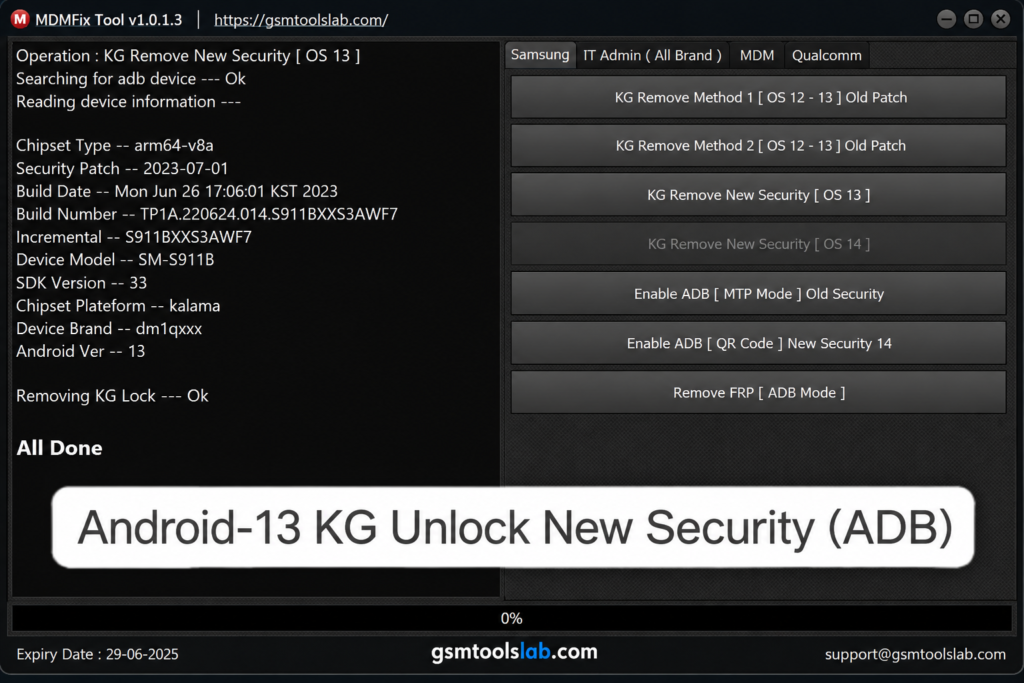
MDM Fix Tool is Android servicing software, listed under the developer name Ufixer, that works with these restrictions on supported devices. It also covers Knox Guard locks, IT Admin limits, Factory Reset Protection, firmware tasks, and device information. The tool supports different connection modes, including ADB, MTP, Fastboot, and EDL.
Features of MDM Fix Tool
MDM and IT Admin Servicing
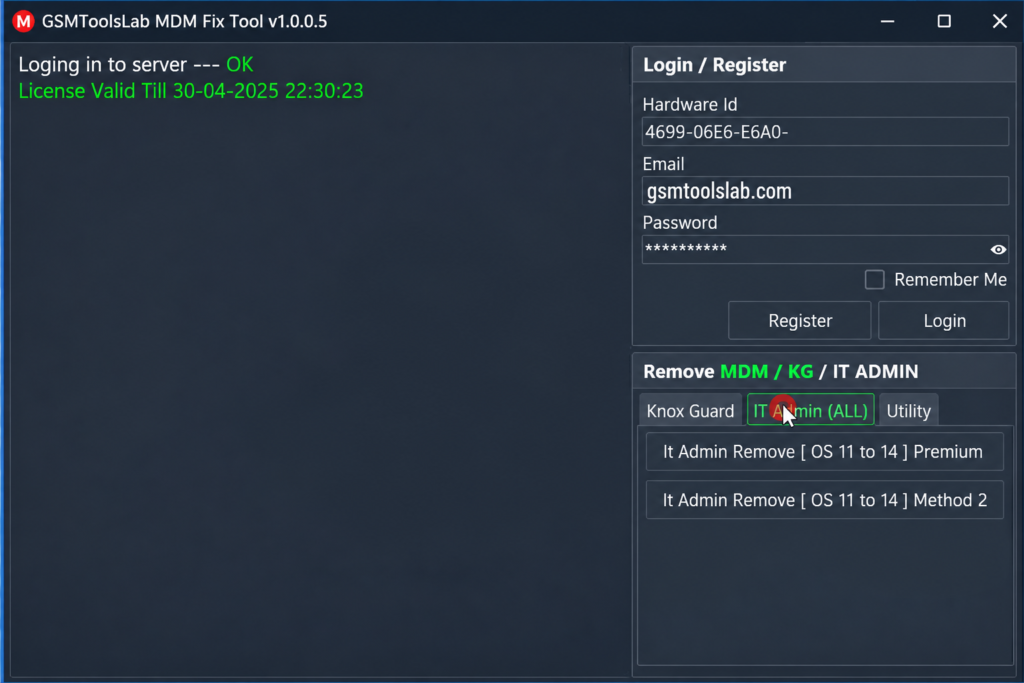
The tool offers MDM and IT Admin options for supported phones. Some Xiaomi models also support an MDM QR method.
Samsung KG Operations
The tool lists KG servicing for selected Samsung models, using ADB and EDL depending on the phone.
FRP Reset and Factory Reset
FRP asks for the old Google account after a reset. The tool can reset FRP in ADB mode, and a factory reset option is available for supported brands.
ADB Enable Options
It can enable ADB with an Android 14 QR method, and through Samsung Test Mode or MTP on supported devices.
Xiaomi, Pixel, and Diagnostic Tools
Xiaomi functions include Mi Account and EFS reset. Pixel repair covers CPID, IMEI 0, and serial fixes. DIAG and serial number change are also listed for some chipsets.
Supported Brands and Chipsets
| Brand | Common Functions |
|---|---|
| Samsung | KG, MDM, IT Admin, FRP, ADB enable, flashing |
| Xiaomi and Redmi | Mi Account, FRP, MDM QR, factory reset |
| Tecno, Infinix, itel | IMEI repair, factory reset, MDM QR |
| Google Pixel | SIM unlock and repair functions |
| Oppo, Realme, OnePlus, Huawei, Honor | Selected servicing functions |
The tool works with MediaTek (MTK), Qualcomm, and Unisoc (SPD) chipsets. Not every model is covered.
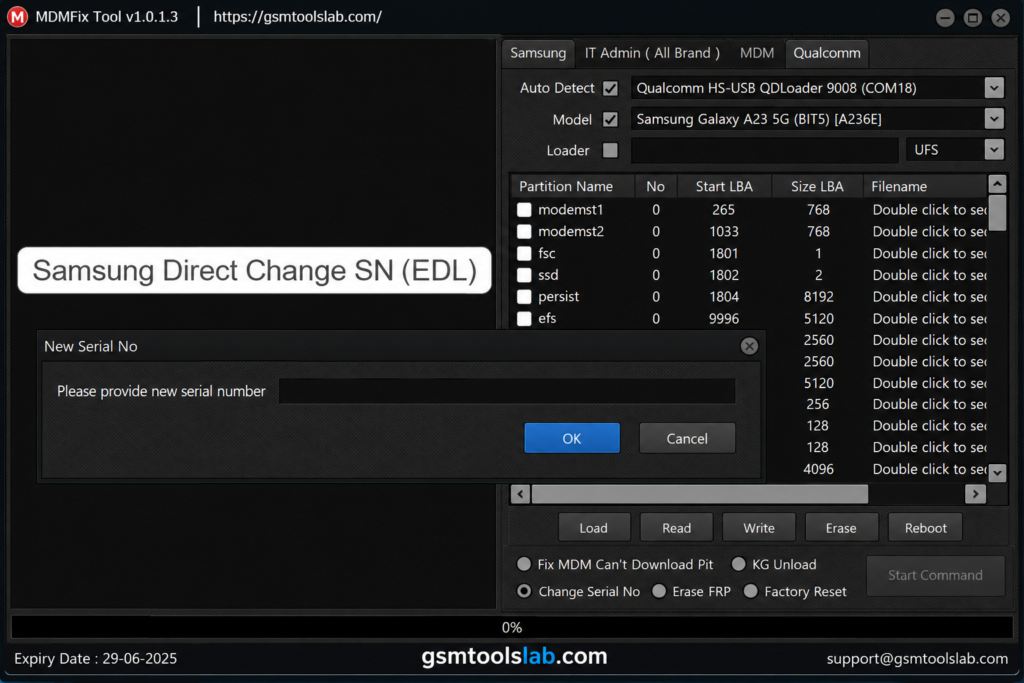
What’s New in v1.1.0.2?
- Better ADB driver detection.
- FRP removal and ADB enable through MTP for Android 16 on supported devices.
- Samsung Download Mode reset and wider KG support.
- A fix for the “Cannot get PIT” error.
- New Samsung models and expanded Xiaomi authentication.
MDM Fix Tool v1.1.0.2 Download Information
- Tool Name: MDM Fix Tool
- Version: v1.1.0.2
- File Type: ZIP or RAR
- File Password: 🗝 None
- File Size: 180 MB
Here is the Official download link 👇
System Requirements
| Requirement | Details |
|---|---|
| Operating System | Windows 7, 8, 10, or 11 |
| Processor | Intel or AMD dual-core or better |
| RAM | 4 GB minimum, 8 GB recommended |
| Storage | At least 1 GB free |
| Drivers | ADB, Samsung, MTK, and Qualcomm USB drivers |
How to Download and Install the Tool
- Download the setup from a gsmtoolslabor from a trusted source.
- Extract the file with 7-Zip or WinRAR.
- Install the USB drivers for your phone.
- Run the tool as administrator.
- Register and activate your account.
- Connect the phone in the mode the function needs.
- Read each prompt, then start the job and keep the cable connected.
If you see “Socket Error #10054”, delete the Data folder next to the program, restart the PC, and run the latest version again.
Pros and Cons
| Pros | Cons |
|---|---|
| Covers MDM, KG, IT Admin, and FRP | Needs registration and activation |
| Works with ADB, MTP, Fastboot, and EDL | Some functions are paid |
| Supports MTK, Qualcomm, and Unisoc | Support varies by model and patch |
| Includes Android 14 and Android 16 options | Wrong steps can erase data |
Conclusion
MDM Fix Tool v1.1.0.2 is a Windows-based utility for users looking to explore Samsung KG, MDM, and FRP-related functions. Before downloading the tool, check its supported features, system requirements, and device compatibility to understand whether it meets your needs. Results may vary depending on the Samsung model, firmware version, and security patch level. For a smoother setup, use a compatible Windows PC, install the required USB drivers, and follow the installation instructions carefully. Always download files from a trusted source and use the tool only on devices you own or are authorized to service.
Visit GSM TOOLS LAB for the MDM Fix Tool v1.1.0.2 download information, feature overview, and step-by-step installation guidance.
MDM Fix Tool FAQ’s
What is MDM Fix Tool used for?
It is a Windows tool for servicing MDM, Samsung KG, IT Admin, and FRP restrictions on supported Android phones. It also reads device details and supports some flashing tasks.
Is MDM Fix Tool free?
Not fully. You need to register and activate your account, and some functions need paid activation. Prices change, so check before you buy.
Is MDM Fix Tool safe to use?
It is safer when you scan the file and use a trusted source.
Which brands does MDM Fix Tool support?
Samsung and Xiaomi have the widest support. Tecno, Infinix, itel, Google Pixel, Oppo, Realme, OnePlus, and Huawei have selected functions.
Can it remove a Samsung KG lock?
It lists KG servicing for selected Samsung models through ADB and EDL. Results depend on the model, chipset, and security patch.
Does it work on Android 14 and Android 16?
Yes, for listed functions. These include Android 14 QR ADB enable and Android 16 FRP removal through MTP on supported devices.
How do I fix Socket Error #10054 in MDM Fix Tool?
Delete the Data folder created next to the program, restart your PC, download the latest version, and run it again.