Dars Unlock Tool Guide | How to Use V5.6 | Free UNLOCKTOOL Loader (2027)

Dars Unlock Tool V5.6 is a free UnlockTool loader. The new update supports UNLOCKTOOL and brings several fixes. It adds Samsung Exynos FRP support through Odin Download Mode and new Qualcomm loaders for more Samsung models. This updated version also fixes loader issues, VPN restrictions, and server connection errors. DarsUnlocker supports various brands and chipsets, including Xiaomi, Samsung, Vivo, OPPO, Realme, Huawei, Honor, Apple, MediaTek, Qualcomm, Unisoc, Tecno, Infinix, Motorola, Nokia, LG, and ZTE.
Before downloading any mobile servicing utility, users should confirm the developer, supported devices, actual features, login requirements, and authenticity of the installation package. These details are particularly important when a program performs operations involving device security, firmware, or account protection.
What is DARS Unlock Tool?
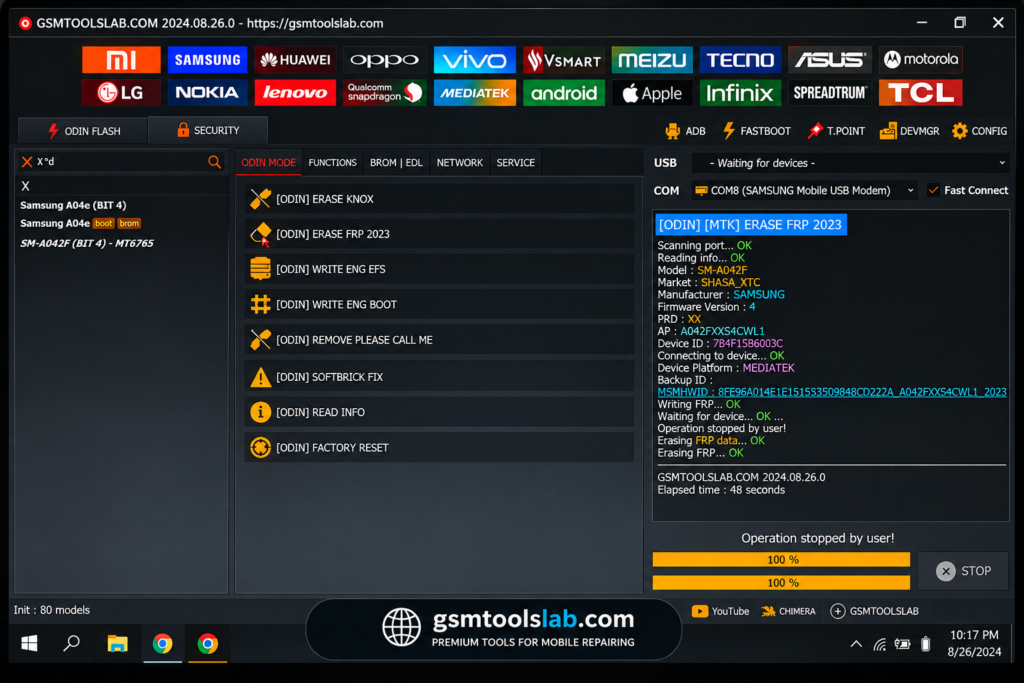
DARS Unlock Tool is a Windows-based mobile servicing tool. It supports smartphones and provides access to selected device-servicing functions, depending on the loader and UnlockTool version. The latest DARS Unlock Tool V2026.08.25.0 comes with a login-based system and includes updated support for selected Apple devices. This tool provides a simple interface. Its features include Boot Diag for selected Apple A12 and A13 devices, Samsung Exynos FRP servicing through Odin Download Mode, and Qualcomm loader.
Why do we use DARS Unlock Tool?
DARS Unlock Tool is used because it is described as a loader that works with UnlockTool, a Windows program for phone servicing. It supports things like Samsung Exynos FRP work in Odin Download Mode, extra Qualcomm loaders for some Samsung phones, and Boot Diag on some Apple A12 and A13 devices. Technicians look for it to handle locked or stuck phones from one PC.
How It Actually Works
Before we get into steps, let me quickly explain what happens in the background, because once you understand this, the whole process makes sense.
DarsUnlocker does three main things:
First, it decrypts a large data file that comes with it. That file contains a fake certificate, fake server responses, and other internal data that UNLOCKTOOL expects to see.
Second, it starts a small HTTPS server on your own computer. This server pretends to be the real UNLOCKTOOL server. When UNLOCKTOOL tries to log in or check your license, it’s actually talking to this local server, not the real one.
Third, it injects a small patch script into UNLOCKTOOL while it’s starting. That patch makes UNLOCKTOOL accept the local server’s answers instead of asking the real one.
Once all three things are running, UNLOCKTOOL thinks it’s talking to the real server and logs you in without any issue.
Dars Unlock Tool Features
- Free UnlockTool Login and licenses
- Local Server & License Bypass
- Offline Use After Initial Check
- Apple iCloud & Ramdisk Support
- OPPO & Realme ID Bypass
- Xiaomi, Redmi & POCO Support
- Samsung FRP Removal
- MediaTek Auth Bypass
- Unisoc / Spreadtrum PAC Flashing
- Vivo V-Account & Demo Mode Bypass
- Huawei & Honor ID Removal
- Qualcomm EDL Flashing
- Tecno, Infinix, Motorola, Nokia, LG & ZTE Support
What’s New in Dars Unlock Tool V5?
- Samsung Exynos FRP support through Odin Download Mode.
- New Qualcomm loaders for more Samsung models.
- Boot Diag support for selected Apple A12 and A13 devices.
- A fix for the Hello Bypass screen timeout.
- Fixes for loader issues, VPN errors, and server connection errors.
What You Need Before Starting
- A Windows-based PC
- Download the DarsUnlocker setup installer from a trusted source or from our website.
- Install the UnlockTool on the same PC
- Run with Admin Access (the loader needs it)
- A Wi-Fi or Internet connection for the first check (it works offline after that)
Step-by-Step: How to Install and Run UNLOCKTOOL
Step 1 – Download and Install UNLOCKTOOL
Download the UNLOCKTOOL setup from its official or authorized source. Before installation, scan the downloaded file with reputable antivirus software. Right-click the installer and select Run as administrator if Windows requires elevated permissions.
Follow the setup wizard, review the installation options, and choose your preferred installation folder. You can also select Create a desktop shortcut for quick access. Click Install and wait until the setup process finishes. Once complete, click Finish to close the installer.
Step 2 – Launch UNLOCKTOOL and Complete Initialization
Open UNLOCKTOOL from the desktop shortcut or Windows Start menu. Allow the application to complete its startup process and check its internet connection.
A stable internet connection may be required for account authentication, server communication, software updates, and supported online servicing functions. Wait until the main login screen appears before continuing.
If the application displays an update or support notification, read the message and follow the instructions provided by the software developer.
Step 3 – Check Windows Permissions and USB Drivers
Before connecting a Motorola, Samsung, Xiaomi, Tecno, Infinix, or other supported Android phone, make sure the required USB drivers are installed.
Depending on the device and servicing operation, you may need:
- Android USB drivers for device detection.
- ADB and Fastboot drivers for supported Android connections.
- Qualcomm QDLoader drivers for compatible Qualcomm devices.
- MediaTek USB VCOM drivers for supported MTK devices.
Use the correct driver package for your device and chipset. A proper USB connection helps prevent detection errors and connection failures during mobile servicing.
Step 4 – Log In With Your Authorized Account
Open UNLOCKTOOL and enter your registered account credentials on the login screen. Use the username and password provided through the authorized account or subscription process.
Click Login and allow the application to verify your account. An active subscription, valid license, or required service credits may be necessary for certain features.
Read the software disclaimer and accept its terms only after reviewing them. Once authentication is successful, the application should open its main dashboard.
Step 5 – Select a Device Brand and Servicing Module
After opening the dashboard, select the relevant device brand and check the available servicing modules.
Depending on the supported model and software version, the interface may provide options for:
- FRP servicing: Supported Google Factory Reset Protection operations.
- ADB and Fastboot: Android device communication and maintenance.
- Firmware operations: Supported stock firmware and software repair tasks.
- Device Information: Reading available model and chipset details.
- Boot and diagnostic modes: Connecting compatible devices for supported servicing operations.
Select the correct device model and connection mode before starting any task. Always check compatibility, back up important data, and use the software only on devices you own or are authorized to repair.
Download Information
| Software Name | DarsUnlocker Bypass Loader + UNLOCKTOOL |
|---|---|
| Version | Dars Unlock tool (v2026.09.23.0) |
| License | Bypass Loader (Local Server) |
| Supported OS | Windows |
| Supported Devices | Xiaomi / Redmi / POCO, Samsung, Vivo, OPPO / Realme, Huawei / Honor, Apple, MediaTek, Qualcomm, Unisoc / Spreadtrum, Tecno, Infinix, Asus, Nokia, Motorola, Lenovo |
| Last Updated | 2026.09.23.0 |
Pros and Cons
| Pros | Cons |
|---|---|
| Includes Samsung Exynos FRP servicing for selected devices | Does not support every Samsung model or security patch |
| Provides additional Qualcomm loader support for selected Samsung phones | Qualcomm support depends on the model and loader version |
| Advertises Boot Diag support for selected Apple A12 and A13 devices | Not all iPhone and iPad models are supported |
| Reported updates address some loader and server connection issues | Some versions may require account authentication |
Conclusion
Dars Unlock Tool is presented as a Windows loader used alongside UNLOCKTOOL for selected mobile-servicing tasks. This guide covers its advertised Samsung Exynos FRP support through Odin Download Mode, additional Qualcomm loaders, Apple A12/A13 Boot Diag features, setup requirements, USB drivers, and installation process. Before using it, check the exact release, supported model, and trusted source. Features can vary by device and software version, so use authorized accounts and service only on phones you own or have permission to repair safely.
Also Read Trusted Tools: QFIL Tool v2.0.3.5 | SP Flash Tool
FAQ’s
Do I need a paid UNLOCKTOOL account to use this?
No. DarsUnlocker runs a local server that handles login and license checks. You log in with the username the loader shows you and any password.
What password do I use for UNLOCKTOOL login?
Any password. Just type anything in the password field. The username is the one DarsUnlocker shows you.
Which Apple devices are supported?
Supported Apple devices include iPhone 11, iPhone 11 Pro, iPhone 11 Pro Max, iPhone SE (2020), iPhone XS, iPhone XS Max, iPhone XR, iPad Air 3, iPad mini 5, and iPad 8.